
Effects
The Effects screen (/effects) is where you bring your layout to life during a session. It's split into three tabs -- Effects, WLED, and Sounds -- each shown only when there's something to display. Effects and WLED scenes are configured in the Cloud app; the sound library is managed on Cloud's Sounds page.
Tabs
| Tab | Visible when | Content |
|---|---|---|
| Effects | Always | Pin-toggle effects — lights, LEDs, street lights, relays, frog juicers, power, and generic pins |
| WLED | You're the layout owner and it has at least one WLED-capable device | One card per device, with a power toggle and scene buttons |
| Sounds | You're the layout owner and the sound library has at least one file | Sound cards grouped by category, each with a play/pause button and a live timeline, plus a stop-all control |
[!NOTE] WLED and Sounds are owner-only tabs — if you joined the layout as a guest (for example, through the QR/room-code join flow) rather than as the layout owner, you won't see them regardless of what the layout has configured.
Effects Tab
Effect Types
DEJA.js supports seven categories of pin-toggle effects, each with a distinct icon and color in the UI:
| Type | Icon | Description |
|---|---|---|
| Light | Lightbulb | Simple on/off light control via a specific pin on a connected device. |
| LED | LED | Individual LED control, similar to Light but specifically for LED indicators. |
| Street Light | Post lamp | Street light or scenery lamp control via a device pin. |
| Relay | Electric switch | Relay module control for switching external circuits. |
| Frog Juicer | Blender | Frog juicer (auto-reversing module) control for track polarity management. |
| Power | Power | Power control for layout sections or accessories. |
| PIN | Pin | Raw digital pin control on a connected device (Arduino, ESP32, or Pico W). |
Effect Cards
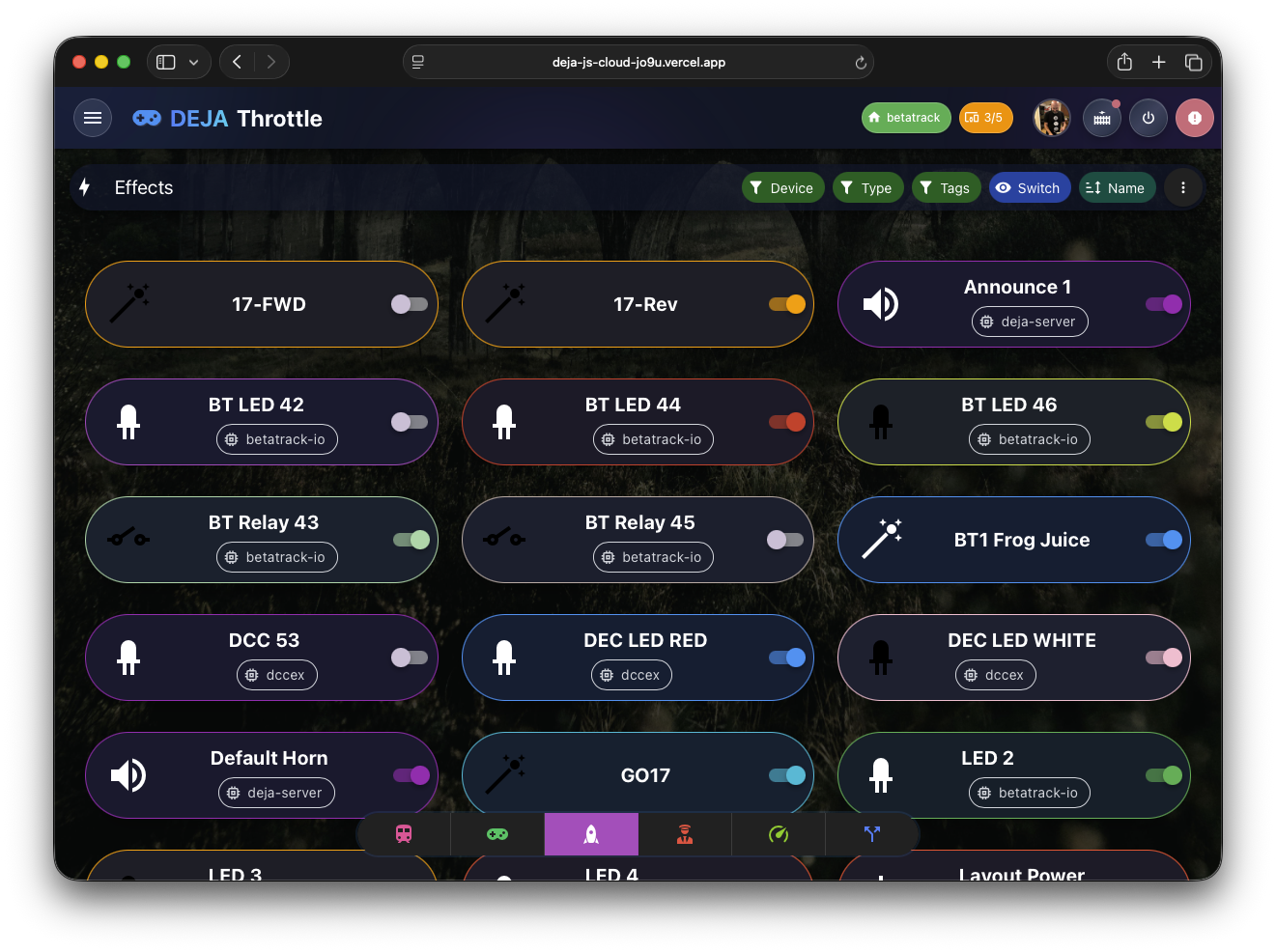
Each effect is rendered as a tonal card that displays:
- Icon and name in the card title, using the icon for the effect's type.
- Effect name repeated in the card body for clarity.
- Metadata chips showing:
- The target device (e.g.,
deja-arduino-01). - The effect type (e.g., Light, Relay, PIN).
- Any assigned tags for categorization.
- A "Guest Access" chip if the effect is also exposed to public/unauthenticated visitors in the Tour app.
- The target device (e.g.,
- Toggle switch in the card actions area to turn the effect on or off. The switch is disabled and shows a loading indicator while the effect is being executed.
The card color follows the effect's configured color, or falls back to the primary theme color.
The default card grid is one of several view modes -- switch to Switch view for a compact list of toggle rows, or Table view for a dense tabular listing, from the view selector.
Filtering and Organization
The Effects tab supports three filter dimensions accessible from a filter menu:
- Device -- filter by the hardware device that executes the effect.
- Type -- filter by effect category (Light, LED, Relay, PIN, etc.).
- Tags -- filter by user-defined tags configured at the layout level.
Effects are displayed in a responsive grid that adjusts column count based on screen width:
| Screen Size | Columns |
|---|---|
| Extra small | 1 |
| Small | 2 |
| Medium | 3 |
| Large | 3 |
| Extra large | 4 |
| Extra extra large | 6 |
Empty State
The Effects tab always shows -- even with zero effects configured, it displays an empty state with a magic wand icon prompting you to create effects in the Cloud app.
Guest Effects
Effects with the allowGuest flag set to true are marked for public/guest display and may also be surfaced in other DEJA.js apps intended for visitors (e.g. the Tour app). This flag doesn't bypass authentication in Throttle itself — you still need a DEJA.js account to trigger effects here.
WLED Tab
The WLED tab shows one card per WLED-capable device registered on your layout:
- Power toggle -- Turn the strip on or off, independent of which scene is active.
- Scene buttons -- Tap a saved scene to activate it. Scenes are created and edited on the device's detail page in the Cloud app.
Sounds Tab
The Sounds tab lists the entire sound library (managed on Cloud's Sounds page), grouped by category, as a grid of sound cards:
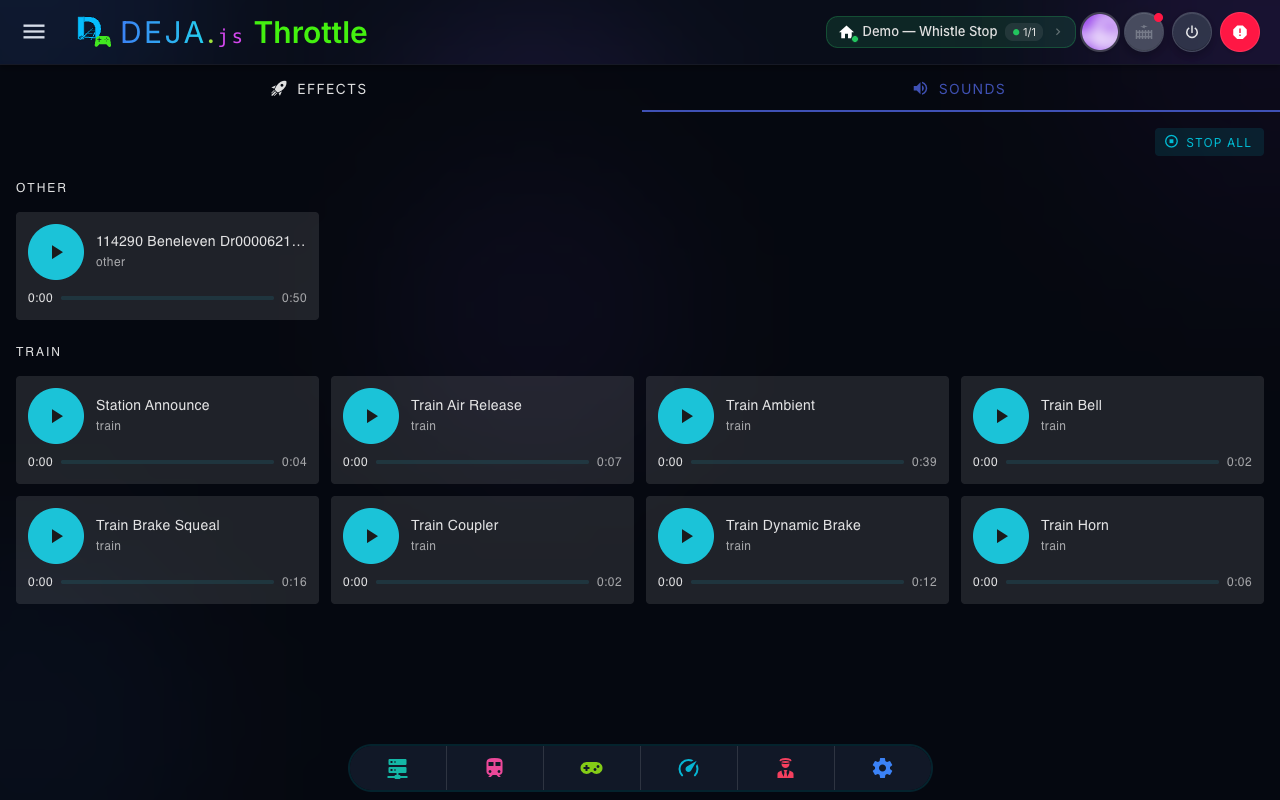
- Sound card -- Each sound gets its own card with a large play/pause button, its name and category, and (once duration metadata loads) a timeline track showing elapsed and total time.
- Live timeline -- The timeline mirrors the layout server's actual playback rather than just animating locally. Tapping pause stops the sound on the server and resets the card's timeline back to the start -- there's no seeking or looping.
- One sound at a time -- Starting a sound stops whatever else is currently playing on the server, and its card becomes the one shown as active.
- Stop all -- A "Stop all" control halts every sound currently playing on the server and resets every card's timeline.
Sounds play instantly -- there's nothing to configure first. Upload and organize files from the Cloud app's Sounds page.
Related Pages
- Effects Management -- Create and configure pin-toggle effects in the Cloud app.
- Sounds -- Upload and manage the sound library in the Cloud app.
- Devices -- Configure WLED scenes on a device's detail page.