
Throttle List
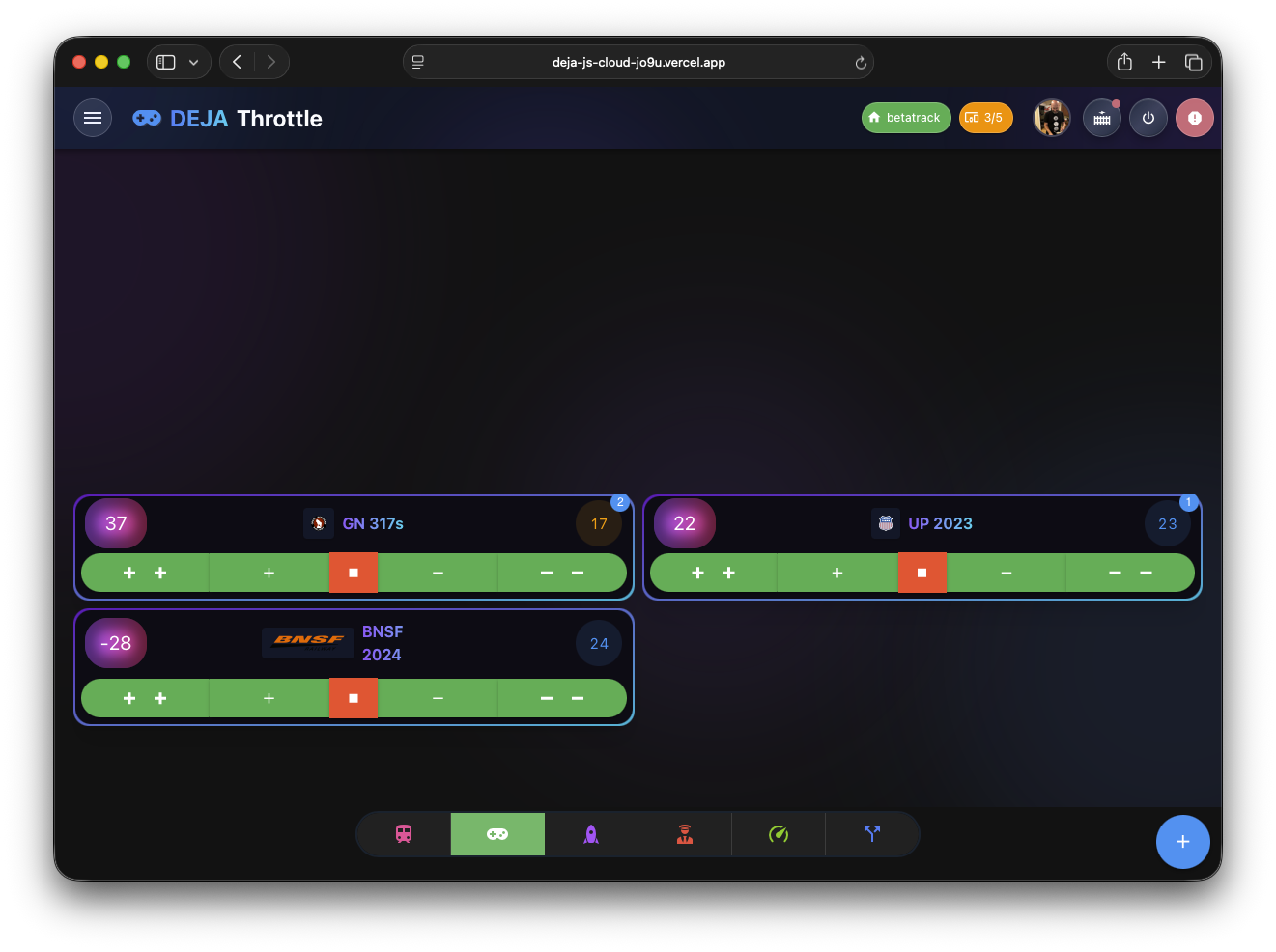
The Throttle List screen (/throttle-list; /throttles still works as a redirect) gives you a bird's-eye view of every active throttle on your layout. It is designed for operators who need to monitor and control multiple trains at the same time.
Grid Layout
Active throttles are displayed as ThrottleTile cards arranged in a responsive grid:
- On mobile screens, each tile takes the full width (one column).
- On wider screens (600px+), tiles arrange into a two-column grid, each tile taking half the width.
Tiles are rendered at the bottom of the viewport and fill upward, so you see your most recently added throttles aligned toward the bottom of the screen -- a layout choice that keeps the controls thumb-reachable on touch devices. A Throttles page header titles the view, and the + Add Throttle floating button sits at the bottom-right.
Throttle Tiles
Each tile is a compact version of the full throttle control, rendered as a rounded card with a colored accent bar. Tiles follow your chosen throttle type (Buttons, Slider, Dashboard, or Proto) from Settings, and share the same two-row layout:
- Identity row -- the locomotive's number plate (its DCC address on a colored plate) on the left, the locomotive name in the middle, and the current speed display on the right. The number plate also serves as the drag handle (shown with a grab cursor) and carries a badge with the unit count when the loco is part of a consist.
- Controls row -- an eject button to park (release) the locomotive, the speed controls (horizontal −5 / −1 / +1 / +5 buttons for the Buttons type, or a speed slider with an R/F reverser lever for the Slider and Dashboard types), and a dedicated stop button.
Drag to Reorder
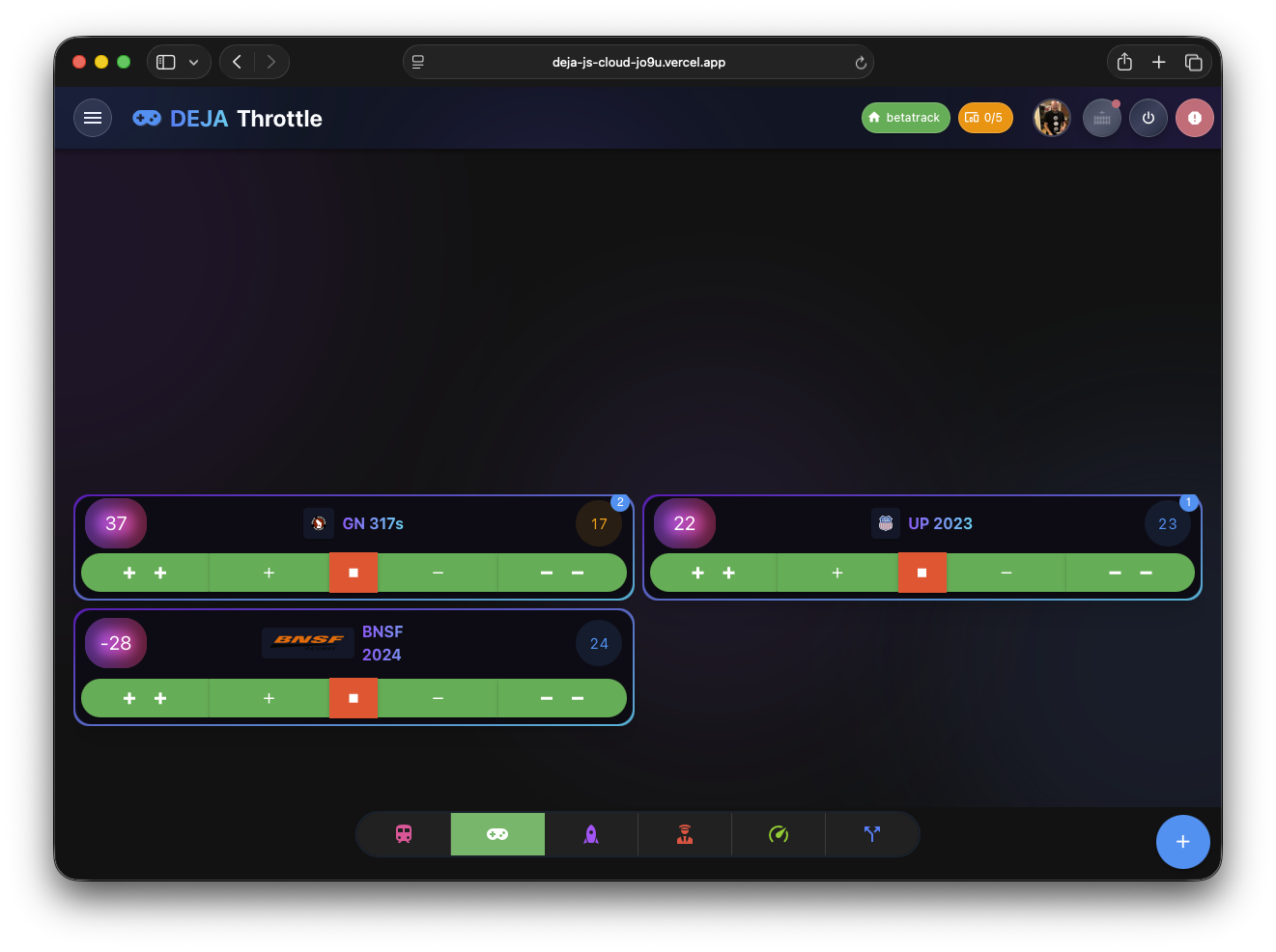
Tiles can be reordered by dragging the number plate (the drag handle on the left of each tile), with a smooth drag-and-drop animation.
Your custom tile order is remembered across page reloads and browser sessions. The ordering logic works as follows:
- Throttles with a saved position are sorted according to your custom order.
- Newly added throttles (not yet in the saved order) are appended to the end, sorted by DCC address.
- If a throttle is removed (released/parked), it is automatically cleaned from the saved order list.
Adding a Locomotive
Tap the + floating button at the bottom-right to open the Add Throttle sheet:
- By address -- a large numeric field at the top (autofocused, with your phone's number pad). Type any valid DCC address (1–10293) and press Enter or Add.
- From your roster -- quick-pick tiles below the field list every locomotive on your layout as number plates. Tap one to acquire it.
Either way, a new tile appears in the grid right away and the DEJA.js server begins controlling that address.
Navigating to Full Control
Tapping (or double-clicking) the number plate on any tile navigates you to the full Throttle Control screen for that locomotive at /throttle/:address.
Background
The Throttle List screen features a dark background with three large, blurred gradient orbs (purple, blue, and violet) positioned at different corners, providing subtle depth without distracting from the tile content.