
Home Screen
The Home screen is your operating dashboard — the first page you see once you are signed in and connected to a layout. It surfaces everything you need to start a session: your layout's status, device connections, running locomotives, and quick links into the rest of the app.
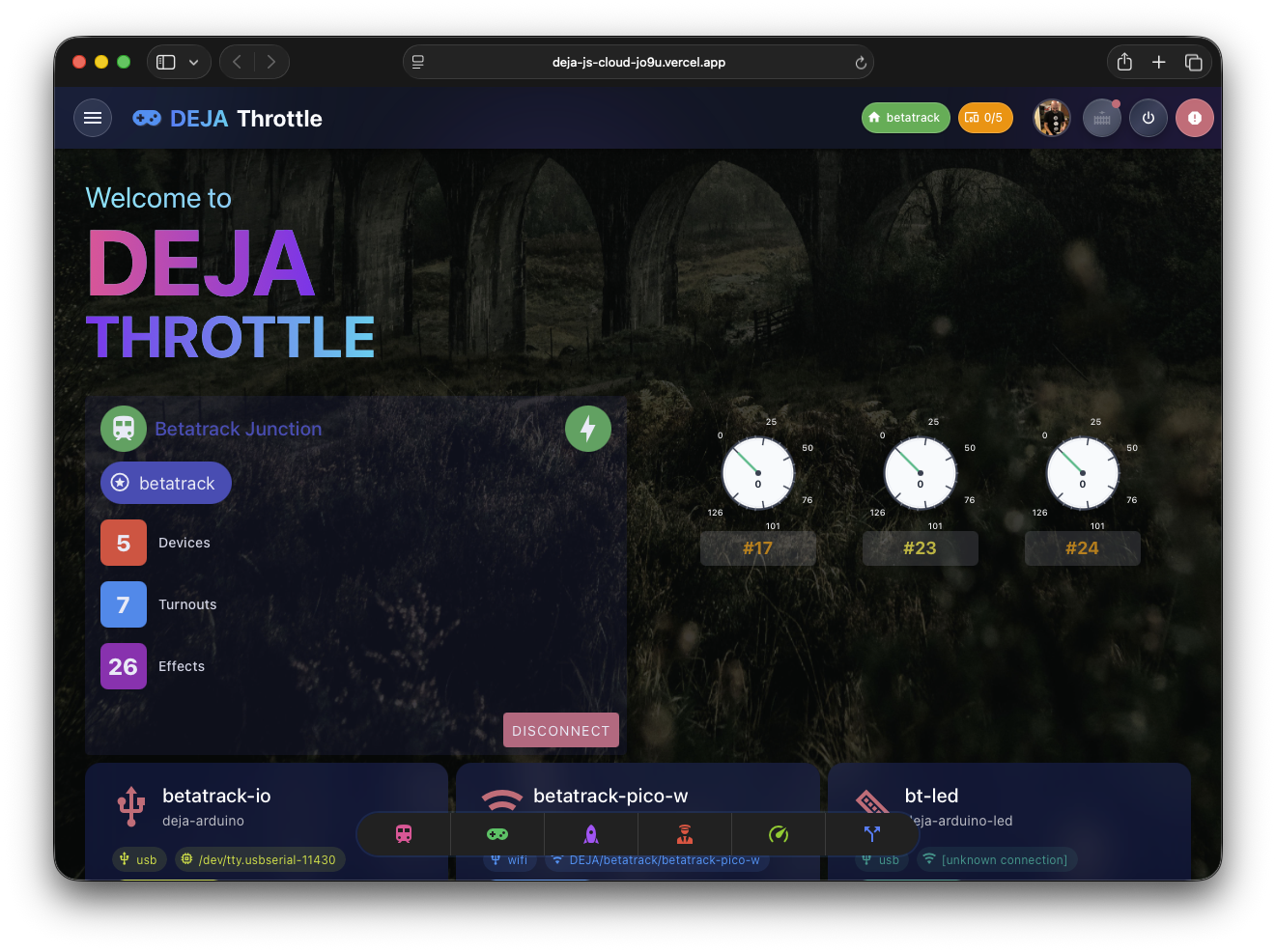
Home requires you to be signed in and have a layout selected. If you aren't, you're routed to the login screen or the Connect page first.
Layout Status
A status header at the top shows the current layout's name and its server connection status — displayed once, so the rest of the page can stay focused on controls. If you haven't finished setting up your layout yet, an onboarding banner appears here with next steps.
Connection & Active Throttles
Below the header, the screen pairs your device connections with your running locomotives:
- Connection panel — a server header band with a device table underneath. The band carries a mini oval track whose rails light when your EX-CommandStation is verified (a little train orbits while track power is on), the server's vitals, and help links. Below it, one row per device — EX-CommandStation first with the DCC-EX logo, then your IO devices with their type icons — each with an honest connection state:
VERIFIED(the server has proof the device is alive),LINKED(connected but quiet), orOFFLINE. WiFi/MQTT devices connect automatically when they come online; on phones the table collapses to simple two-line rows. Tap any row for details and controls. - DCC-EX Terminal — a retro LCD-style console alongside the connection panel (the same terminal as the Cloud app's DCC-EX Console) streaming live DCC command traffic, with a command prompt for sending raw DCC-EX commands directly — type the inner command (no angle brackets) and press Enter.
- Active Throttles — a grid of Speedometer widgets, one per running locomotive. Each speedometer is an SVG gauge showing the locomotive's current speed and DCC address. Clicking a speedometer opens that locomotive's full Throttle Control screen. The grid grows from two up to five columns as the card widens.
Quick Navigation
A grid of navigation tiles mirrors the app's navigation menu — the same items, colors, and labels as the More sheet. Roster, Throttles, and Conductor always appear; the rest (Turnouts, Routes, Effects, Signals) show up once your layout has at least one of that thing. Tap a tile to jump straight to that section.