
Conductor View
The Conductor View (/conductor) is a comprehensive control interface that places the throttle list, a full-featured active throttle, and a configurable module panel (turnouts by default) side by side in a single screen. It is designed for operators using large monitors, tablets in landscape mode, or dedicated dispatching stations where everything needs to be visible at once.
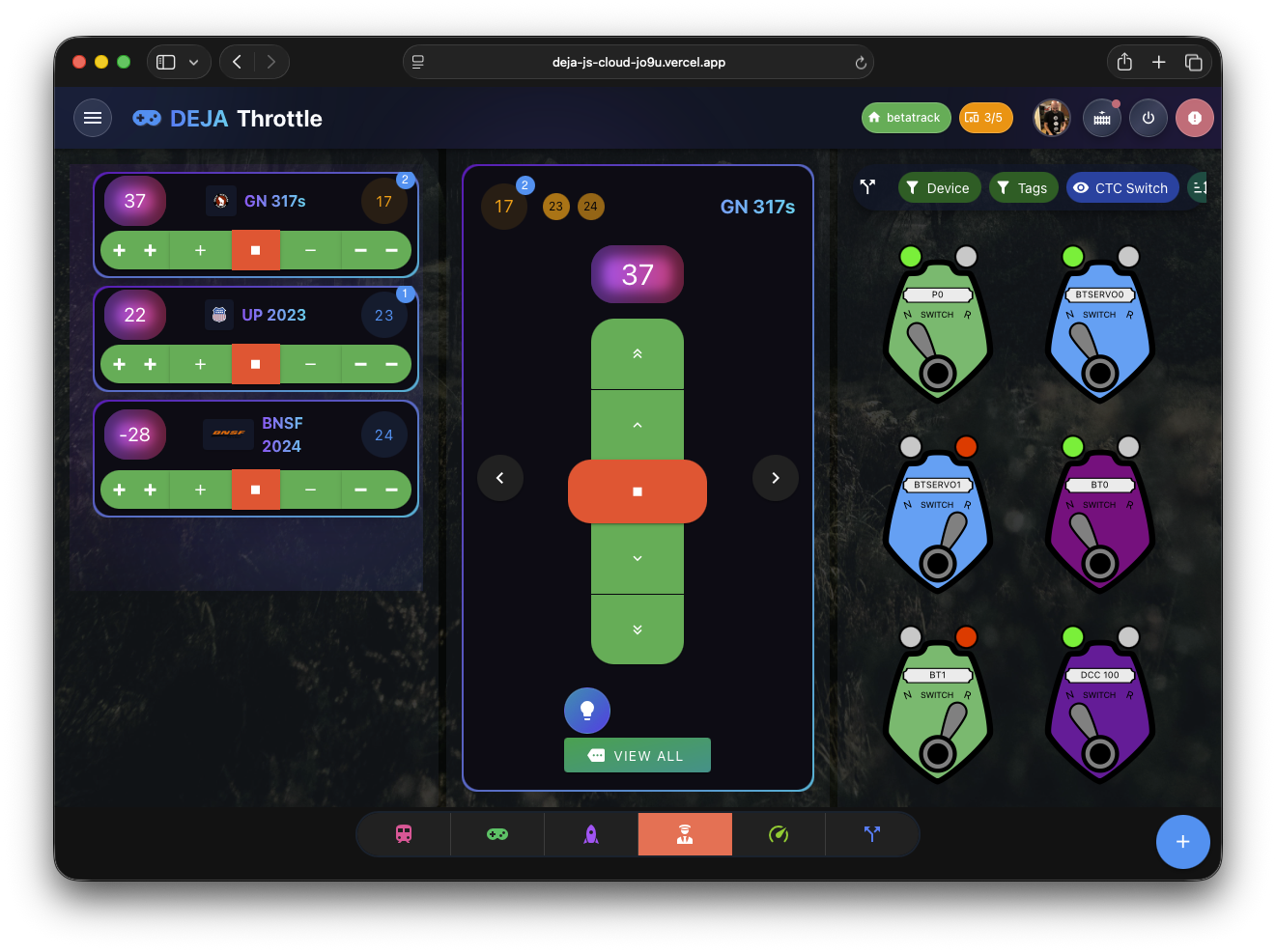
Three-Pane Layout
The Conductor View arranges into three columns once the container is 960px or wider.
Left Pane: Throttle List
The left pane displays the same ThrottleList component used on the standalone Throttle List page. All active throttles appear as tiles with number plates, locomotive names, speed displays, and inline speed controls.
This pane has:
- A green border accent (semi-transparent) to distinguish it visually.
- Independent vertical scrolling, so you can scroll through many active throttles without affecting the other panes.
- The same drag-to-reorder functionality and FAB (+) button for adding locomotives from the roster.
Center Pane: Active Throttle
The center pane is the primary control area. It shows the full Throttle Control for the currently selected locomotive, using whichever throttle type you've chosen in Settings (Buttons, Slider, Dashboard, or Proto). Swipe left or right — or tap a locomotive in the left pane — to switch between active throttles. The active throttle carries its speedometer, function speed dial, and consist indicator, subject to your Settings toggles.
Right Pane: Configurable Modules
The right pane shows one or more modules, chosen in Settings → Throttle → Conductor Right Panel (a multi-select — pick any or all). Options are:
- Turnouts (the default) — the turnout list, for throwing and closing switches while you drive. See Turnouts.
- Effects — the effects list. See Effects.
- Signals — the signal list. See Signals.
- Devices — device connection status.
- Routes — route selection and execution. See Routes.
- Diagram — the interactive track diagram viewer.
Every selected module renders stacked in the right column. This pane scrolls independently, which is useful when the chosen modules have many items.
Responsive Behavior
The three-pane layout adapts based on the width of the Conductor View:
- 960px and wider -- all three panes display in a three-column grid, sized to fill the available screen height for a fixed-height dispatcher station feel.
- Below 960px -- the panes stack into a single column. The order changes so that the active throttle (center pane) appears first, followed by the throttle list, and then the module panel. This reordering ensures the most important control (the active throttle) is always at the top on smaller screens.
When to Use the Conductor View
The Conductor View is ideal for:
- Dedicated dispatching stations at a club layout where one operator manages multiple trains and turnout routing from a single screen.
- Large tablets or monitors where you want to see everything without switching between pages.
- Operating sessions where fast access to throttle switching and turnout control reduces the time spent navigating between separate views.
For quick single-train operation on a phone, the standard Throttle Control or Throttle List views are better suited to the smaller screen.
Access Requirements
You must be signed in, have a DCC-EX connection available, and have a layout selected before the Conductor View is accessible.