
Connecting to Your Layout
Before you can control trains, the Throttle app needs to connect to your layout. This page walks you through the connection process.
My Layouts
The Connect page's My Layouts section lists every layout you own or belong to, with your role on each. Tap a layout to switch to it — your selection is remembered between sessions, so you won't pick again unless you switch.
Single-layout accounts are connected to their layout automatically.
Joining Another Layout
Join another layout in the same section takes a layout ID or a pasted invite link and routes you into the join flow — instant access with a link or room code, or a request the layout owner approves from the Cloud app's Settings → Access. While a request is pending (or if it was declined), its status shows right here on the Connect page.
Connection Status
The app header shows your connection status at all times:
- Connected — The Throttle app is communicating with your DEJA Server and EX-CommandStation. You're ready to control trains.
- Disconnected — The app can't reach your server. Check that the DEJA Server is running (
deja status) and that your device is on the same network.
Authentication
The Throttle app supports two modes:
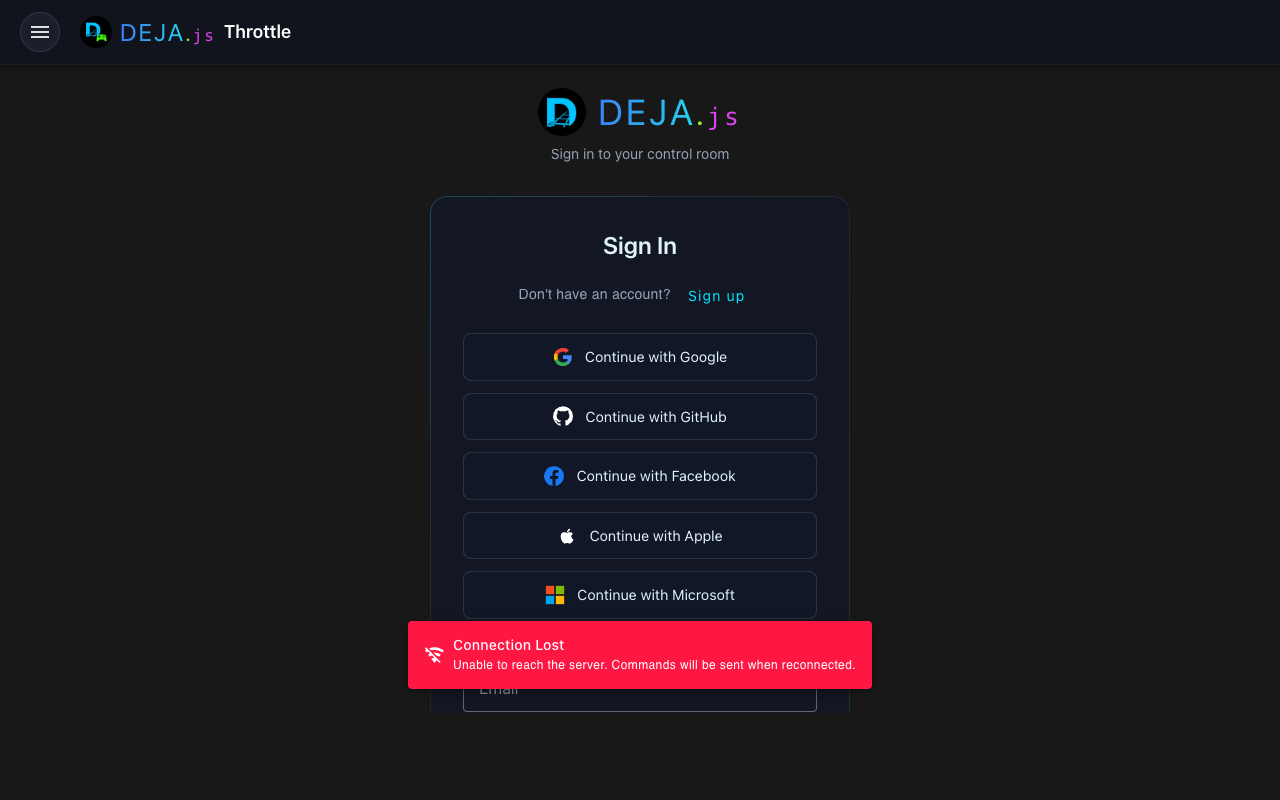
- Sign in — Log in with your DEJA Cloud account for full access to all features
- Try Demo — Explore the app on a shared demo layout without setting up your own (limited features)
Joining Someone Else's Layout
The public /join page lets another person get onto your layout without a DEJA Cloud account of their own. It doesn't require signing in first. Depending on how the layout owner shared access, a guest can:
- Scan a QR code or enter a room code shown on-site (for example, on the Monitor app's Access Code kiosk view) for instant, proximity-based access.
- Open an invite link generated from the Cloud app's Settings → Access section.
- Request access, which shows up for the layout owner to approve or deny from Settings → Access in the Cloud app.
Once approved, the guest is taken into the Throttle app as a member of that layout.
Troubleshooting
Can't connect to layout
- Verify the DEJA Server is running on the computer connected to your EX-CommandStation — run
deja status - Make sure your phone/tablet/computer is on the same network as the server
- Try refreshing the browser page
Layout not appearing
If your layout doesn't show up in the picker, verify that you've completed the onboarding wizard in the Cloud app and that your layout has been created.