
Signals
The Signals screen (/signals) displays all signals configured for your layout and lets you control their aspect (red, yellow, or green). Signals reflect the state of track blocks and can be used to coordinate safe train movements during operating sessions.
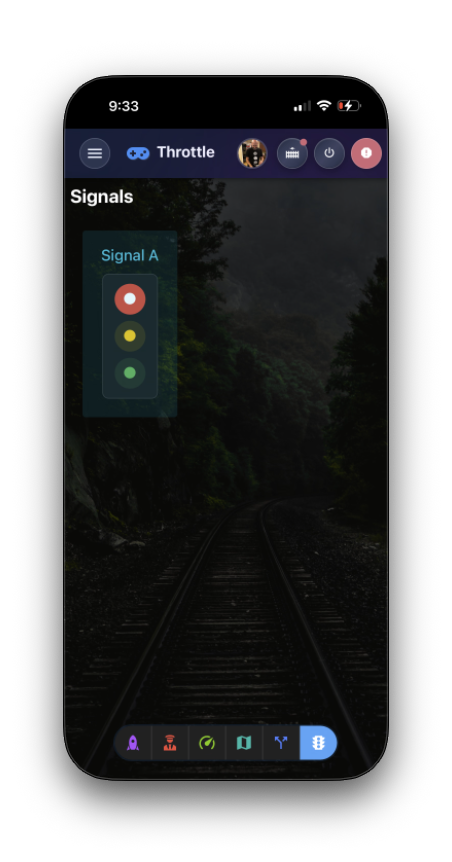
Signal Cards
Each signal is rendered as a tonal card with a cyan theme. The card contains:
- Signal name as the card title (falling back to the signal ID if no name is set).
- Signal head -- a vertical column of three circular buttons representing the three aspects, displayed against a dark background to simulate a physical signal housing:
- Red (top) -- the stop aspect. Shown as a bright red filled button when active, or a muted tonal red when inactive.
- Yellow (middle) -- the caution/approach aspect. Shown as a bright amber filled button when active, or a muted tonal amber when inactive.
- Green (bottom) -- the clear/proceed aspect. Shown as a bright green filled button when active, or a muted tonal green when inactive.
Toggling Aspects
Tap any of the three aspect buttons to change the signal:
- Tapping an inactive aspect activates it and deactivates any other active aspect. Only one aspect can be active at a time.
- Tapping the currently active aspect turns it off, setting the signal to a null (dark) state.
Aspect buttons are disabled if the signal does not have a pin configured for that color. For example, if a two-aspect signal only has red and green pins assigned, the yellow button will be disabled and non-interactive.
Filtering and Views
The Signals list supports filtering by:
- Device -- show only signals attached to a specific hardware device.
- Tags -- filter by user-defined tags.
Three view modes are available:
| View | Description |
|---|---|
| Signal | The default view with the three-aspect card layout described above. |
| Card | A standard card view showing signal metadata and a toggle switch. |
| Table | A compact tabular view listing all signals with their properties in rows. |
Signal Configuration
Signals are configured in the Cloud app, where you assign pin numbers, select the target device, and optionally set tags and descriptions. The Throttle app is used for monitoring and control during operations.
Empty State
If no signals are configured for the current layout, the page displays only the "Signals" heading. Signals must be added through the Cloud app before they appear here.